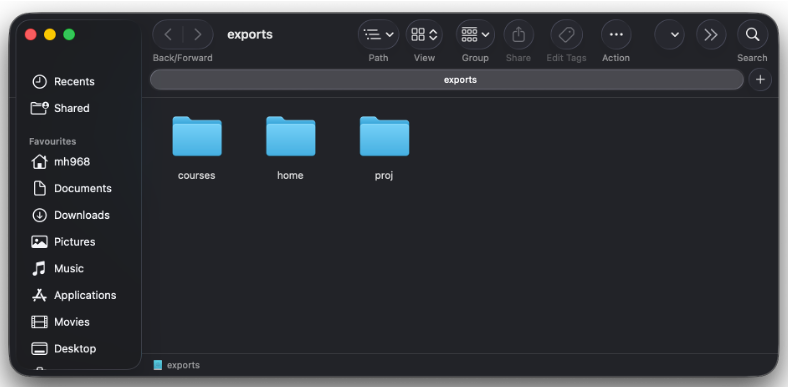

Raptor is a Linux server system that is stored in our own Kennedy building. It is a powerful system that can be utilised to store files, run command line programs, and even sometimes submit assignments. You will learn more about it on other modules.
The three folders you now have open have different purposes:
- courses – Used to distribute content such as class or assignment materials.
- home – Your own personal storage to use across machines, only you can access this.
- proj – Used to submit class or assignment work for marking.
There are two ways to access it: mounting it as a drive to your file browser for managing files, and through a computer terminal to run Unix commands.
Mounting Raptor as File Drive
Campus PC:
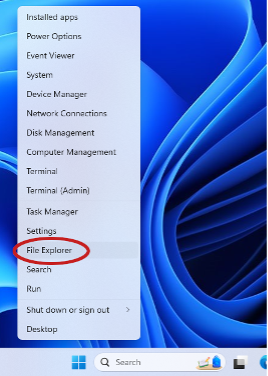
- Right-click the Windows start icon and select “File Explorer”
2. In the new File Explorer window, click on the blank white bar at the top of the window
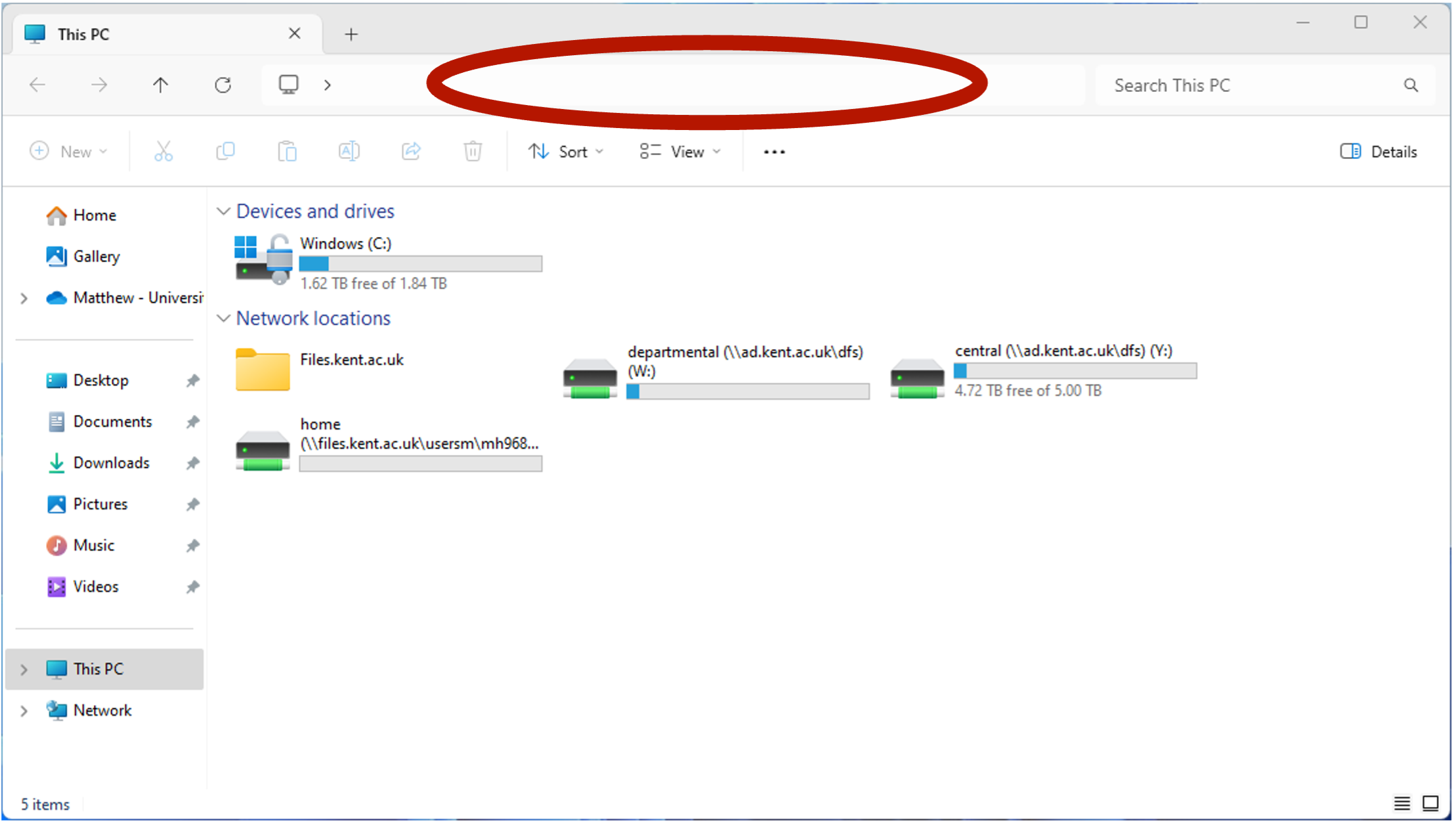
- Type “\\raptor.kent.ac.uk\exports” and press the enter key on the keyboard
- You should see three folders titled “courses”, “home”, and “proj” as shown below.
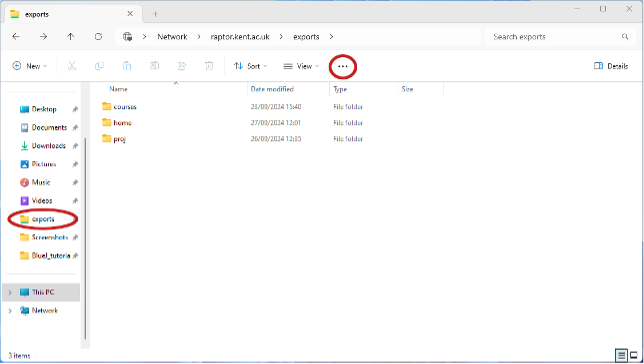
- For easier access in the future, click the three dots in the menu bar and select “Pin to Quick access”.
- Now you should see the “exports” folder in the sidebar, right below the “Videos” folder as shown in the image.
Windows Laptop:
- Follow the same step 1 as above.
- Navigate to “This PC” if you’re not already there.
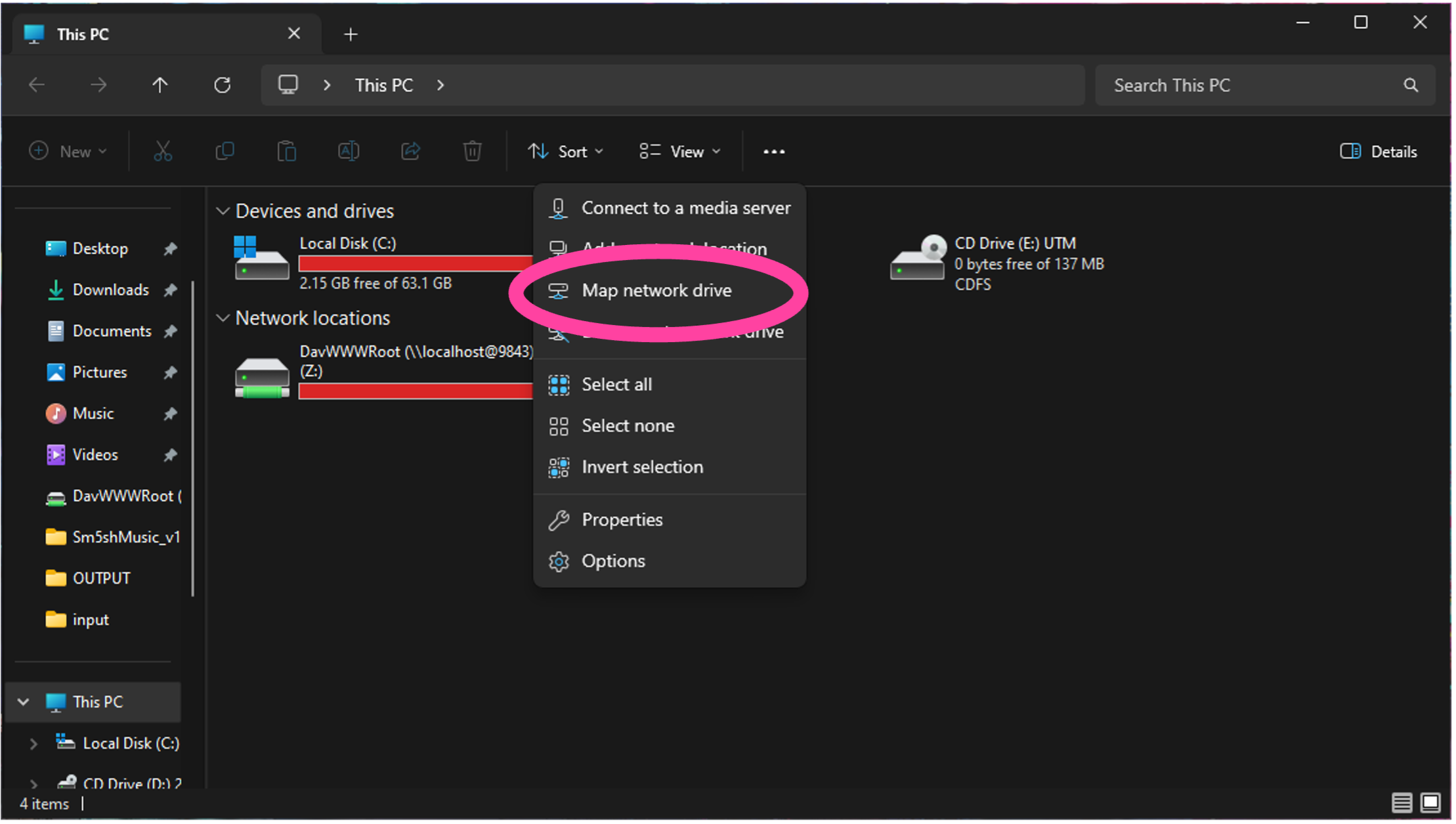
- Click the three dots in the menu bar just above the (C:) drive, then press “Map network drive”.
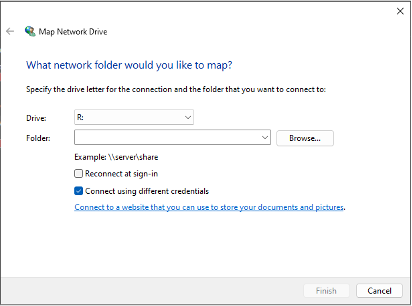
- In this new window, type “\\raptor.kent.ac.uk\exports” in the Folder prompt, then check the “Connect using different credentials” box if it hasn’t already been.
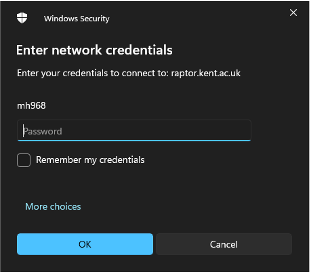
- A prompt will appear asking you for a password but don’t enter it as it won’t work. Instead, press the “More choices” text above the OK button, and select “Use a different account”.
- Now you should be able to enter a custom username, enter your Kent ID (with the “@kent.ac.uk” part) and password, then press OK.
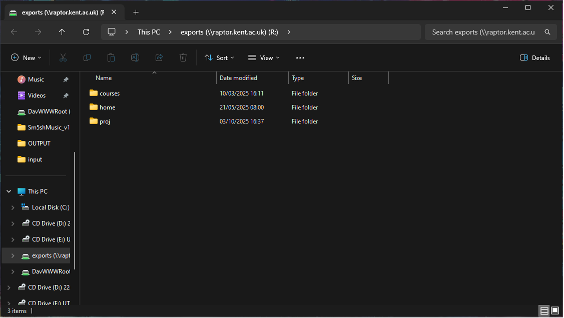
- You should see three folders titled “courses”, “home”, and “proj” as shown below.
Mac:
- Open Finder by pressing on its icon in the dock.
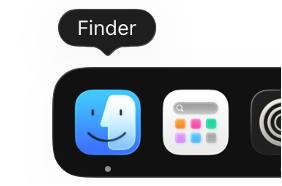
- Once selected, press the keys “command ⌘” and “K” on your keyboard at the same time (⌘ + K), a new window should open.
- In the new “Connect to Server” window, type in the text prompt “smb://raptor.kent.ac.uk/exports” and click connect.
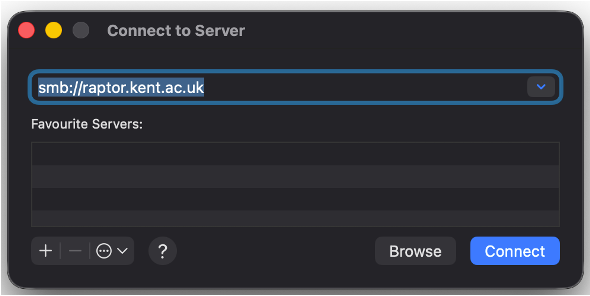
- You’ll be prompted to log in, enter your Kent ID (with the “@kent.ac.uk” part) and password then hit the enter key on the keyboard.
- You should see three folders titled “courses”, “home”, and “proj” as shown below.